
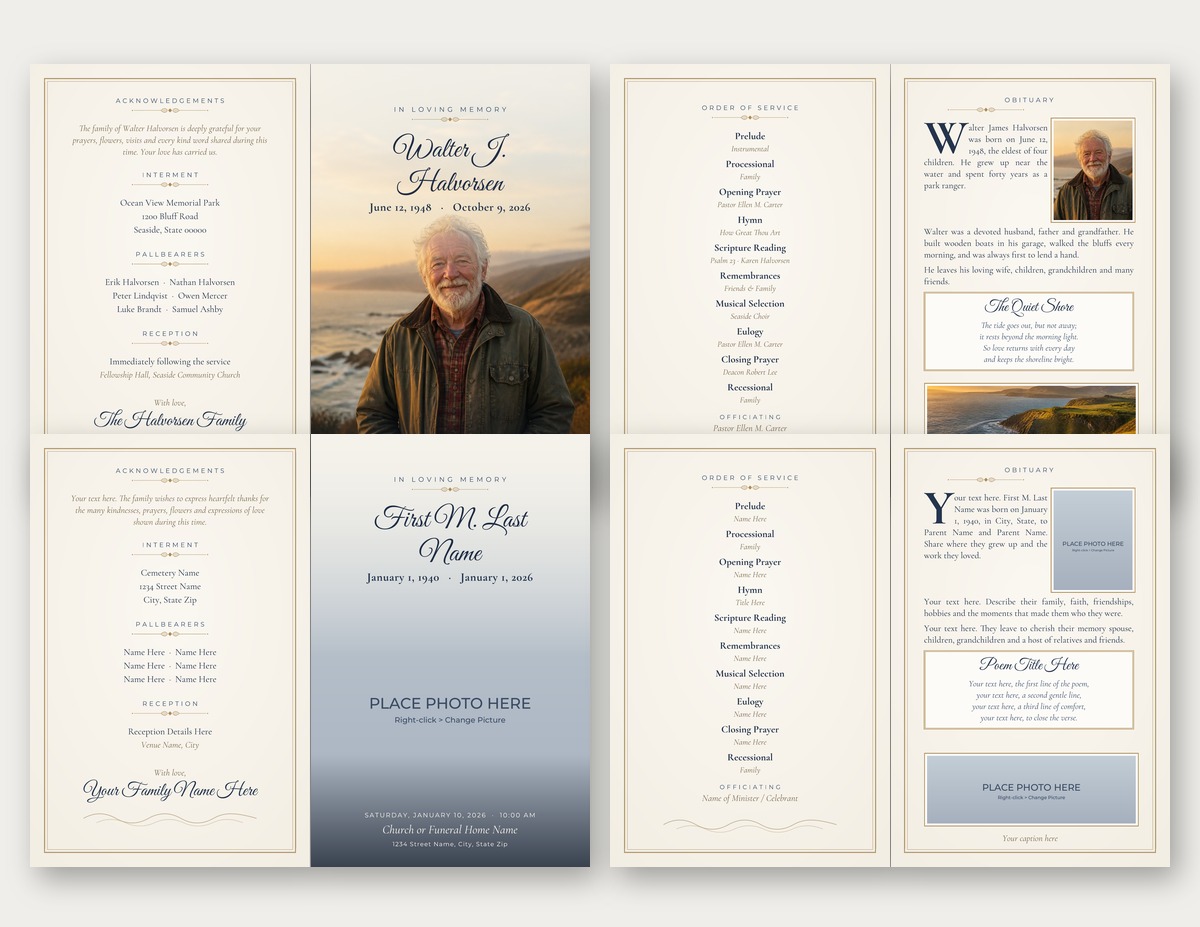
To open the template first, use the short PDF you downloaded from our site. Open the private link, sign in to Canva or create an account, and click Use template, so you are working in your own copy. A Canva account is enough, and Canva Pro is not needed. To browse designs that include Canva, start with our Canva funeral program templates.
For general home-printing help, see Funeral programs printing. For paper choice, see Funeral program paper. If you would rather have a shop print the file, see Printing funeral programs at a print or copy shop.
Download a PDF Print file
In Canva, click Share, then Download, and choose PDF Print. Save that file somewhere you can find it again.
PDF Print is the download type named in the Canva instruction PDFs. Other download types in Canva are not described in those PDFs, so use PDF Print when you are getting a file ready to print.
Print at actual size
Most funeral program templates print on letter paper (8.5 by 11 inches). Many bifolds print in landscape. Choose actual size, or 100 percent, in your print settings. Do not choose Fit, fit to page, or shrink to fit. The instruction PDFs say Fit may shrink the page and can move a fold or change the finished size.
Do a test print first on plain paper. For a bifold, fold the test sheet and check that the cover is on the front and the inside reads the right way up before you use your final paper.
Print on both sides
Many bifold programs print on both sides of one sheet, then fold in half. The instruction PDFs for those designs say to print double-sided and flip on the short edge, so the inside is not upside down.
If your printer does not print on both sides by itself, print page 1, then put the sheet back in the tray and print page 2 on the other side. Check which way your printer feeds paper first, as the PDFs advise.
Some designs print one side of the paper only, with each page on its own sheet, such as some graduated-fold programs. Follow the instruction PDF for your design if it says to print single-sided.
If a test print comes out with the back upside down, try the other flip setting. Some instruction PDFs say to switch from short edge to long edge, or the other way around, when that happens.
Crop marks and bleed on some designs
On some designs the artwork or a cover photo runs to the edge of the page. The Quiet Shore bifold, which comes in Word and Canva, is one of those. Its instruction PDF says the design has print bleed turned on, so the photo extends a little past the page edge and can be trimmed cleanly.
If you are taking a design like that to a print shop, the Quiet Shore PDF says to tick Crop marks and bleed in Canva before you click Download. Do not assume every design needs that box ticked. If your instruction PDF does not mention crop marks or bleed, download a regular PDF Print file.
Most home printers cannot print to the very edge of the paper, so they may leave a thin white margin. That is normal. If your printer supports borderless printing, the Quiet Shore PDF says you can turn that on in the print settings. For a true edge-to-edge result, take the PDF with crop marks and bleed to a local print shop, and ask for full bleed, printed double-sided, flipped on the short edge, and folded, as that PDF describes.
Choose paper
The instruction PDFs say to use paper your printer can handle, and that heavier paper or light card stock can look nicer if your printer supports it. For weights and printer limits, follow our funeral program paper guide. That page recommends 28 pound paper as a compromise, and it warns that many laser printers have a 32 pound limit. Do not move past what your printer can feed.
Take the file to a print shop
You can take the same PDF Print file to a local print shop or office store. Our print shop page explains how to find a shop and whether to use self-service or full service.
Ask the shop for letter paper, actual size, and the sides and flip setting in your instruction PDF. For many bifolds, that is double-sided and flip on the short edge. For a full-bleed design, bring the file you downloaded with crop marks and bleed, and ask for full bleed as described above.
If you get stuck, use our contact form, or email us at


