
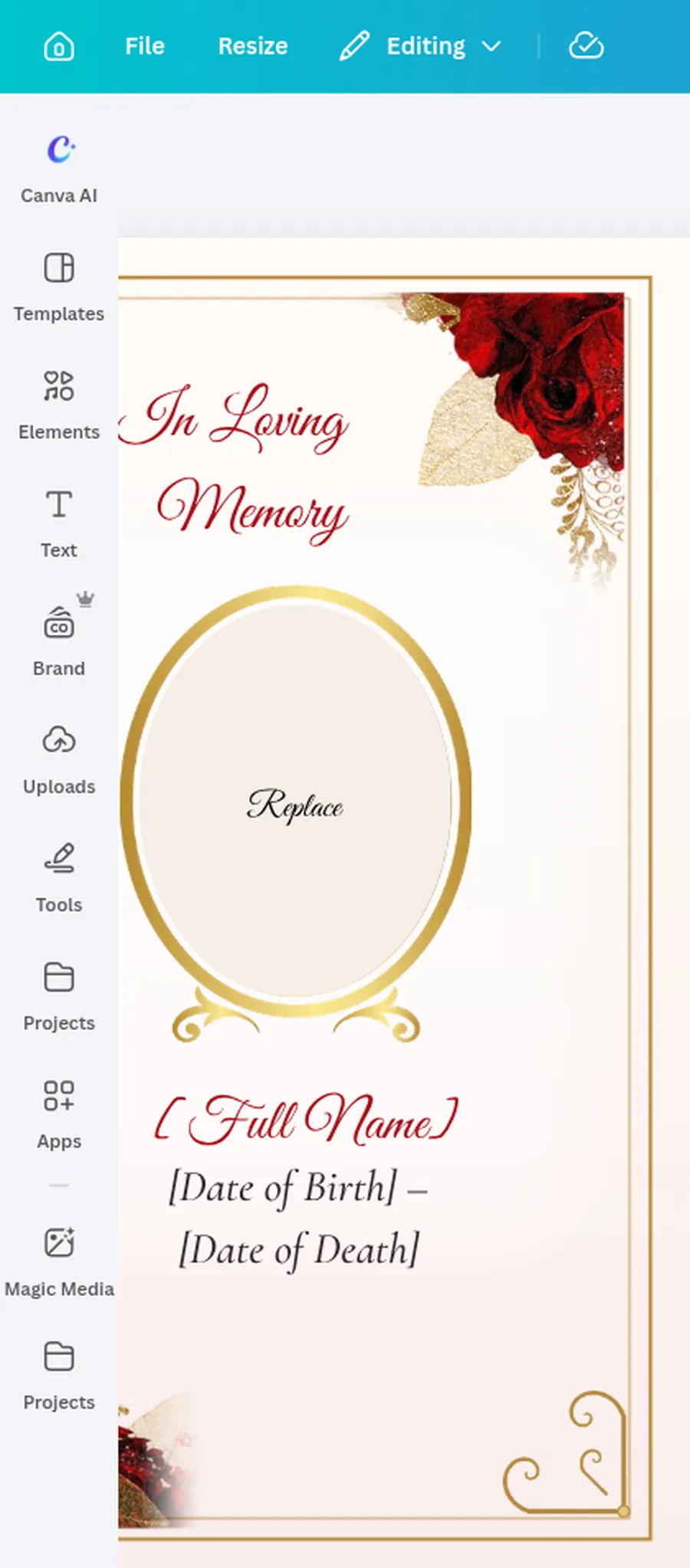
The prayer cards that include Canva are the Modern Botanical prayer card, the Floral Bouquet Frame prayer card, the Beloved Angel prayer card, the Dove Cross prayer card, and the Beloved Vintage Rose prayer card. All five come in Word and Canva. Dove Cross also comes in Apple Pages. The other four do not. If you choose Beloved Vintage Rose, pick the color on the product page. It is offered in Red, Purple, Yellow, and Pink.
The bookmarks that include Canva are the Classic Floral bookmark, the Floral Bouquet Frame bookmark, and the Beloved Angel bookmark. All three come in Word and Canva, and they do not come in Apple Pages.
You can also browse all memorial prayer card templates and bookmark templates. For what to put on the front and back, and for finishing touches such as a ribbon, see How to make a memorial prayer card and How to make a memorial bookmark. For verses, see In loving memory poems and Memorial bookmark poems.
Open your Canva template
After checkout, you download a short PDF with a private link, not the finished cards or bookmarks. Open that link by clicking the button, copying it into your web browser, or, on some designs, scanning the QR code. Sign in to Canva, or create an account. A Canva account is enough, and Canva Pro is not needed. Then click Use template. That makes your own copy in your Canva account. Your edits are kept in that copy. The original stays unchanged, so you can start fresh from the link.
Edit the sheet
A Canva prayer card template is 2 pages of letter paper in landscape. Page 1 has 8 card fronts, and page 2 has 8 card backs. Put the photo and the text on each front, and update the backs, so every card on the sheet matches. The instruction PDF may suggest finishing one card, then copying its text into the others.
A Canva bookmark template also has a front page and a back page. After you print and cut, you get 4 bookmarks.
To add a photo, click Uploads, then Upload files, and choose your picture. Click the photo frame, then click Replace, or drag the photo onto the frame and drop it there. Do this on every card or bookmark on the sheet that should have the photo.
Download and print
In Canva, click Share, then Download, and choose PDF Print.
Print on letter paper (8.5 by 11 inches), in landscape, at actual size, or 100 percent. Do not choose Fit, which may shrink the page and change the card size.
Print double-sided, so the backs print on the reverse of the fronts. Follow the instruction PDF for your design for the flip setting. Many prayer card PDFs say to flip on the long edge. The Modern Botanical PDF says to flip on the short edge first, and to switch to the long edge if the backs come out upside down. The bookmark PDFs say to flip on the short edge.
Do a test print first on plain paper. Hold it up to the light and check that the backs line up with the fronts, and that they are not upside down, before you use your final paper.
Some instruction PDFs say you can also use perforated prayer-card stock, with 8 cards on a letter sheet. If you do, load it the way the note on the side strip says, with this side up and the tab at the bottom of the paper tray, then tear the cards apart along the perforations after printing. On plain paper, cut along the card edges instead.
For paper weights and printer limits, see Funeral program paper. That page recommends 28 pound paper as a compromise, and it warns that many laser printers have a 32 pound limit. The prayer card PDFs also say a heavier card stock looks best if your printer takes it.
Cut the cards or bookmarks
Most Canva prayer card sheets make 8 cards, each 2.5 by 4.25 inches. On the Modern Botanical sheet, the cards sit in a grid of 4 across and 2 down, with a 0.5 inch margin at the left and right. Trim those side margins first, then cut along the lines between the cards.
Most home printers leave a small unprinted edge, so the outer edge of a card may show a thin white line. Trimming a little inside that edge removes it.
For bookmarks, trim around each one to separate the 4 copies. There are no folds. The finished size is about 2.46 by 8 inches on the Classic Floral and Beloved Angel bookmarks, and about 2.4 by 8 inches on the Floral Bouquet Frame bookmark. Use the size in your instruction PDF. The Beloved Angel PDF says to trim along the gold border.
A print shop can also print the PDF. Ask for letter paper, double-sided, actual size, and the flip setting in your instruction PDF.
If you get stuck, use our contact form, or email us at


