
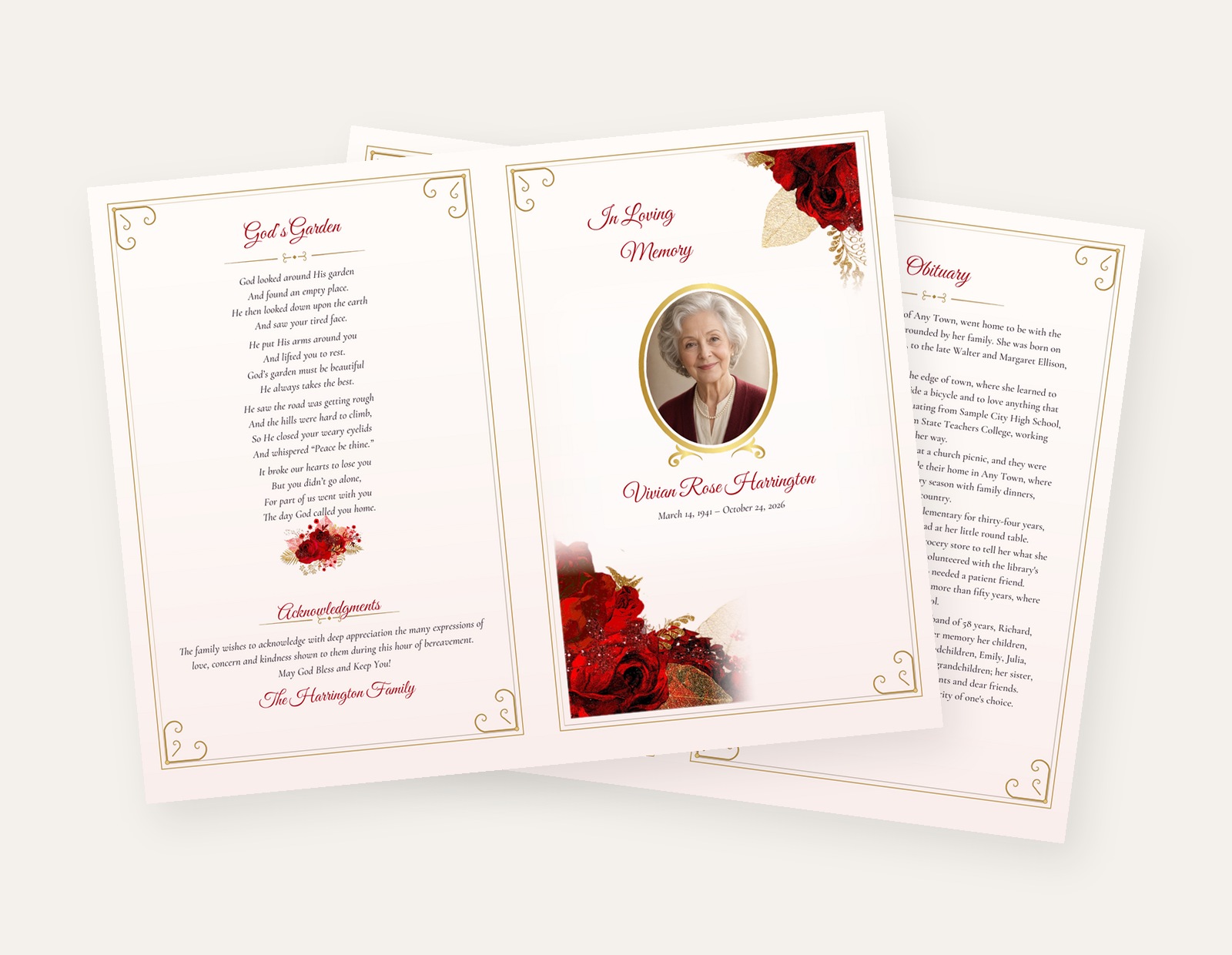
These five tips are for a funeral program you personalize at home, then print yourself or take to a local print shop. They work with a template from Elegant Memorials. Every published template comes in Microsoft Word 2007 or higher. Some designs also come in Canva, and many older designs also come in Apple Pages. Canva is not on every product, so check the File Type menu on the product page before you buy. If you want to edit in your browser, start with our Canva funeral program templates and choose Canva only on a design that lists it.
Choose a clear cover photo
The cover photo is the first thing people see. A blurry, grainy, or crowded picture can weaken an otherwise careful design.
If you have a studio portrait, that is often a strong choice, with the focus on the face and shoulders. If you do not, pick the clearest photo you have of your loved one. Look for sharp focus, natural light when you can, and a background that does not pull attention away. Photos with several other people, busy wallpaper, or a lot of clutter are harder to use on a small cover.
For more help choosing a picture, see Funeral program pictures and Selecting photos for funeral programs. If the only photo you have includes extra people or background details, a photo editor can crop or clean it up, or you can ask someone who edits photos to help.
On many of our Word templates, you can replace the sample cover photo in Word 2007 or higher by right-clicking the picture and choosing Change Picture, then picking your file. If you bought a Canva file type, open the template from the PDF you download after checkout and replace the sample photo there. Our Canva page explains that this PDF holds a private link to your template.
Add family photos and clipart with care
A program becomes more of a keepsake when it includes a few other pictures: a favorite activity, a family group, or a simple photo collage. A small piece of clipart, such as a flower or a cross that fits the design, can also help, as long as it does not crowd the text.
It is easy to add too much. If the pages feel packed, use fewer images or choose a layout with more room. A standard bifold has four panels. A 4-page graduated fold template gives you more space for photos, poems, and an order of service.
The original version of this post used Pastel Memories as an example, and that design is still offered. The Pastel Memories bifold comes in Word and Canva. The Pastel Memories 4-page graduated fold comes in Word, Canva, and Apple Pages. The regular graduated-fold version of Pastel Memories comes in Word and Apple Pages, but it does not come in Canva, so do not choose that layout if you specifically want Canva.
You can also browse all bifold funeral program templates. For artwork to add yourself, see our funeral program and memorial clipart. Those packages are zip files of artwork, not Word, Canva, or Apple Pages templates. For layout ideas, see funeral program photo collages.
Frame a photo in Word
If you want the cover photo in a simple shape, such as an oval, you can do that in Word 2007 or higher without extra design software.
Go to Insert, then Shapes, and draw the shape on the page. With the shape still selected, open the Shape Format tab (in some versions of Word this tab is labeled Format or appears under Drawing Tools). Choose Shape Fill, then Picture, and pick your photo. Keep the shape simple. Hearts, stars, and banners can distract from the person you are honoring.
If you chose a Canva file type, use the photo frame that is already in the design and replace the sample picture.
Choose fonts that are easy to read
Titles can use a slightly larger size or a different style than the body text. The words people need to read during a service, such as the order of service, the obituary, and poem lines, should stay in a plain, readable font, at a size that is comfortable in print. A title in a soft color can work if it still prints clearly.
You do not need decorative Word Art for this. If you want title wording ideas, see Funeral program titles. For typeface suggestions, see Funeral program fonts.
If you are editing a Canva file, you can change the sample text and type styles in your browser the same way you replace photos: open the private template link from your download PDF, then edit the text already on the page.
Print on quality paper
Paper makes a real difference in the hand. A thicker sheet usually feels more finished and lets less of the other side show through. Brightness, color, finish, and texture also change how photos and type look.
We keep the details on Funeral program paper, rather than repeating a full paper guide here. Print a single test copy first, then print the rest at home or take the file to a local print shop or copy shop.
If you edited the program in Canva, download a print-ready file from Canva before you print. Our Canva page and product descriptions say you can download a print-ready PDF or print at home. For the overall choose, personalize, and print flow, see How funeral program templates work.
A polished program is one that is easy to read, kind in its wording, and true to the person it remembers. If you want to see finished examples before you start, visit Funeral program examples.


